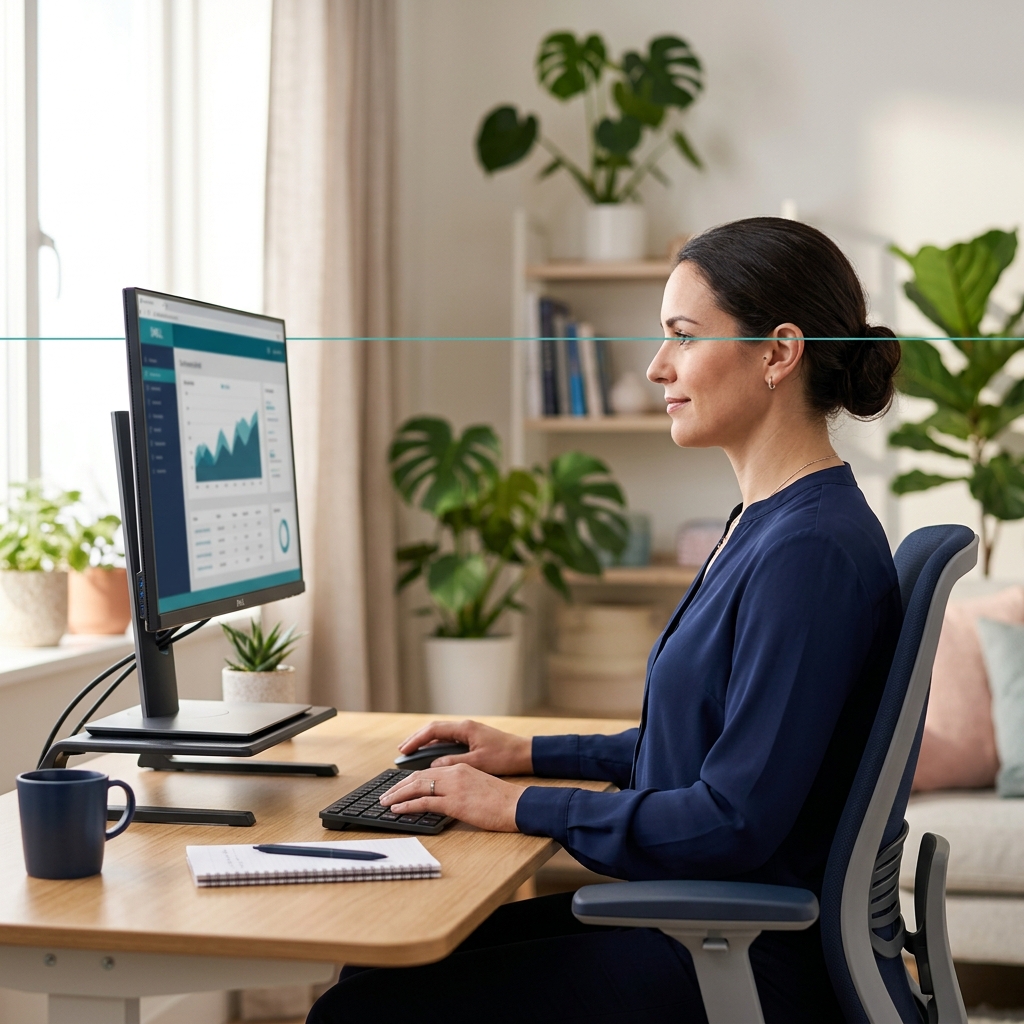
The leading cause of desk-related neck pain isn’t how long you sit — it’s where your monitor is positioned.
Every degree your head tilts downward adds load to your cervical spine. At just 30° of forward flexion, your neck is managing the equivalent weight of 40 lbs — when your head only weighs 10–12 lbs normally.
The fix is precise, measurable, and permanent once you set it correctly.
The Anatomy of Monitor-Related Neck Pain
When your monitor is too low (the most common error), you spend hours with:
- Head flexed forward (chin toward chest)
- Upper back rounded (thoracic kyphosis)
- Shoulder blades pulled apart (weakening the muscles between them)
- Restricted breathing (compressed diaphragm)
This posture pattern creates a condition called “tech neck” — a modern epidemic that physiotherapists call one of the most common new patient complaints.
The good news: the moment you raise your monitor to the correct height, these muscle chains can start to recover.
The Science: At What Height Should Your Monitor Be?
Research from the Human Factors and Ergonomics Society provides clear guidance:
Optimal monitor top position: At or just below horizontal eye level (0–15° downward gaze angle)
Why “just below” rather than perfectly level? Your eyes naturally rest in a slight downward gaze when relaxed. Positioning the monitor top at eye level — with the center of the screen approximately 10° below — aligns with this natural resting position, reducing eye muscle strain.
How to Find Your Correct Monitor Height (Step by Step)
Step 1: Set Your Chair Height First
Sit in your chair and adjust height so:
- Feet are flat on the floor
- Thighs are parallel to the ground
- Your lower back has lumbar support
This establishes your baseline eye-level height. (If your chair is wrong, your monitor height calculation will be wrong too.)
Step 2: Mark Your Eye-Level Point
Sit upright with your head in a neutral position — not looking up or down. Your gaze should fall naturally forward. Have someone mark or note approximately where your eyes are in relation to your desk area.
Step 3: Position the Monitor Top at That Mark
The top edge of your monitor screen (not the top of the monitor body) should align with or be just below that point.
For most people sitting in an ergonomically adjusted chair, this puts the top of the screen at 4–8 inches above the desk surface (monitor height varies).
Step 4: Set the Distance
Monitor should be 20–30 inches from your face — approximately arm’s length. If you find yourself leaning in to read, either:
- Increase font size and display scaling, OR
- Move the monitor closer (within the 20” minimum)
Step 5: Set the Tilt
Tilt the monitor back 10–20° from vertical — slightly reclined toward you. This reduces glare and helps keep your gaze angle comfortable.
Dual Monitor Setup Ergonomics
If you use two monitors:
Option A: Both monitors equal use Position both monitors at an equal angle, forming a slight V-shape centered on you. Both tops should be at the same height.
Option B: Primary + secondary Primary monitor straight ahead (center). Secondary monitor at a 30–45° angle to your dominant side. The secondary screen should still be at the same height — not off to the side at desk level.
The Monitor Height Problem for Laptop Users
Laptop screens are always too low. Always. If you’re working on a laptop screen alone for more than 2 hours a day, you’re damaging your neck.
The two-part solution:
- Raise the laptop on a stand (this gets the screen to approximately correct height)
- Add an external keyboard and mouse (because you can’t use the laptop keyboard when it’s raised)
This $50–80 setup (stand + keyboard + mouse) eliminates the most common cause of tech neck for laptop workers.
Monitor Arms: The Best Investment for Ergonomics
A monitor arm unlocks the ability to:
- Adjust height during the day
- Push the monitor completely out of the way when not needed
- Use one or two monitors without a space-consuming stand
- Position the screen at exactly the right distance and angle
When combined with a properly adjusted chair and a quality ergonomic office chair cushion for seat support, a monitor arm is the highest-ROI ergonomic upgrade most desk workers can make.
Monitor Placement Checklist
Before you start work tomorrow, run through this:
- Top of screen at/just below eye level
- 20–30 inches from face
- Tilted 10–20° back
- No glare from windows (perpendicular placement)
- Center of screen approximately 10–15° below eye line
- Font size and scaling comfortable without leaning in
- No need to turn your neck to look at monitor
Common Monitor Height Mistakes
| Mistake | Consequence | Fix |
|---|---|---|
| Screen on desk surface (no stand/arm) | 30–45° forward head tilt | Use monitor arm or stand |
| Top of screen too high | Forces upward gaze, eye strain | Lower until top is at eye level |
| Monitor facing a window | Glare, eye fatigue | Rotate desk or add blinds |
| Too far away on large desk | Squinting, leaning forward | Move within arm’s length |
| Laptop screen only | Permanent downward gaze | Add external monitor + stand |
Next Steps
Once your monitor is optimized, the next most impactful improvements are:
- Chair posture — see Best Office Chair Posture Tips
- Complete desk setup — see the Ultimate Ergonomic Desk Setup Guide
- Decide on sitting vs standing — see Standing Desk vs Sitting Desk
Your neck will start thanking you within a week of making these changes.